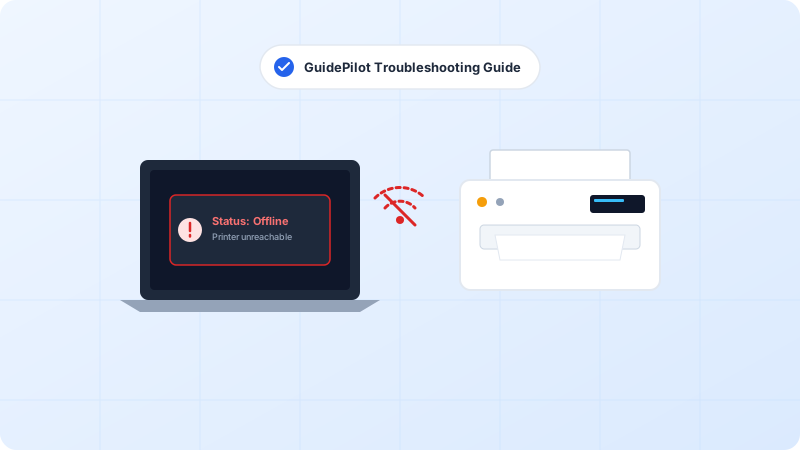
When your printer pauses for 45 seconds between every single page, the cause is usually high-DPI image spooling, quiet mode, or Wi-Fi packet drops.
Why This Problem Happens
- “Quiet Mode” or “Silent Mode” is enabled on the printer, cutting motor speeds by 60%.
- Print quality set to “Photo Best” instead of “Standard” for text documents.
- Spool settings forcing RAW format conversion on a low-memory printer controller.
Step-by-Step Troubleshooting Procedure
Step 1: Disable Quiet Mode in Printer Settings
Objective: Restore full motor feed velocity.
- Open your printer screen menu or web admin portal.
- Locate Preferences > Quiet Mode and switch it to OFF.
Step 2: Adjust Print Quality to Standard / Draft
Objective: Reduce data payload per page.
- Open Printing Preferences > Paper/Quality tab.
- Change print quality from “Maximum DPI” or “High” to “Normal” or “Draft”.
Step 3: Change Spool Settings to “Start Printing Immediately”
Objective: Prevent whole-job waiting.
- In Printer Properties > Advanced tab, ensure “Start printing immediately” is selected instead of “Start printing after last page is spooled”.
Verified Troubleshooting Tips
- Switching connection from 2.4GHz Wi-Fi to a direct Gigabit Ethernet cable eliminates buffer delay for multi-page PDF files.
Frequently Asked Questions
Does color printing take longer than monochrome?
Yes, multi-pass color inkjets make up to 4 passes per line to mix CMYK pigments.