 Windows
7 Steps to Speed Up Slow Windows 11 After Recent Updates
Disable telemetry startup apps, optimize visual transparency effects, and restore peak responsiveness to your Windows 11 PC.
Windows
Disable telemetry startup apps, optimize visual transparency effects, and restore peak responsiveness to your Windows 11 PC.
 Windows
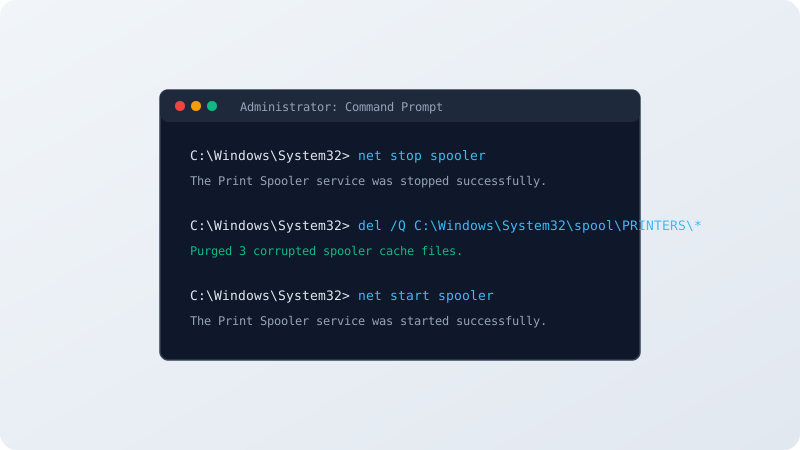
Stop random Wi-Fi drops by updating WLAN drivers, disabling power saving timeouts, and flushing TCP/IP DNS stacks.
Windows
Decode stop codes like MEMORY_MANAGEMENT and IRQL_NOT_LESS_OR_EQUAL to identify bad drivers or RAM sticks.
Windows
Restore Windows Audio and Endpoint Builder services when sound suddenly mutes and troubleshooting fails.
Windows
Reset the SoftwareDistribution cache folder to resume failed cumulative and security updates on Windows 11 & 10.
Windows
Restore missing Bluetooth toggle switch, reinstall Bluetooth radio drivers, and restart Bluetooth Support Service.
Windows
Fix explorer.exe restarting constantly when opening folders or right-clicking files. Clear File Explorer cache and shell extensions.
Windows
Silence runaway background tasks like SysMain, Windows Search indexing, and System Interrupts consuming all drive I/O.
Windows
Fix black screen camera feeds, "NoCamerasAreAttached" error 0xA00F4244, and privacy shutter toggles on Windows 11.
Windows
Boost quiet microphone volume, fix permission blocks, and configure default recording communications devices.