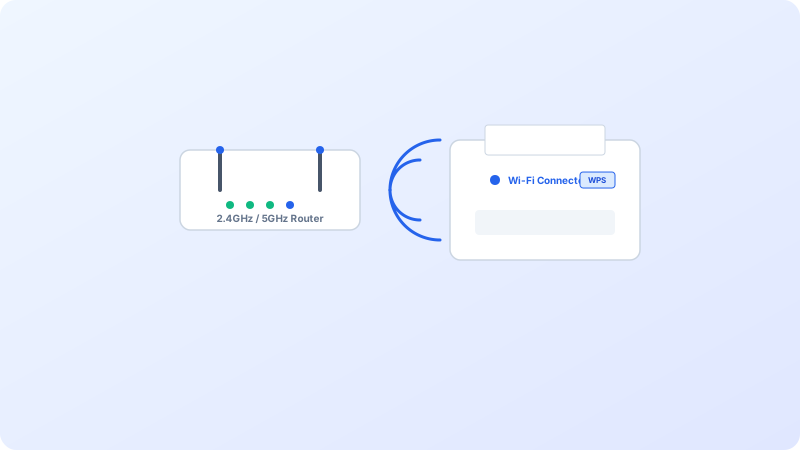
When you replace your home router or change your Wi-Fi password, your wireless printer loses its network connection and cannot update automatically. Here is how to reconnect it seamlessly.
Why This Problem Happens
- New Wi-Fi router uses 5GHz band while older printers only support 2.4GHz.
- Router security protocols switched to WPA3 which some legacy printers cannot negotiate.
Step-by-Step Troubleshooting Procedure
Step 1: Confirm 2.4GHz Frequency Band on Router
Objective: Check your router broadcast settings.
- Most printers require the 2.4GHz Wi-Fi band. Ensure your router has a dedicated 2.4GHz SSID or enables backward compatibility.
- Make sure network isolation / guest mode is turned off for the printer.
Step 2: Use the Wi-Fi Setup Wizard on Touchscreen Printers
Objective: Input network credentials directly.
- On your printer screen, go to Setup > Network > Wireless Setup Wizard.
- Select your network SSID, enter your Wi-Fi password carefully, and wait for the blue Wi-Fi LED to turn solid.
Step 3: Connect via WPS Button for Screenless Printers
Objective: Establish one-touch handshake.
- Press and hold the Wi-Fi button on your printer until the light blinks.
- Within 2 minutes, press the WPS button on your Wi-Fi router for 3 seconds.
Verified Troubleshooting Tips
- If WPS fails, connect the printer temporarily via USB cable and run the manufacturer desktop utility to write Wi-Fi credentials.
Frequently Asked Questions
Why does my printer refuse to see my 5GHz Wi-Fi?
Over 80% of consumer printers only include a 2.4GHz radio. Split your router into two distinct SSIDs (e.g., Home_2.4G and Home_5G) and connect your printer to Home_2.4G.