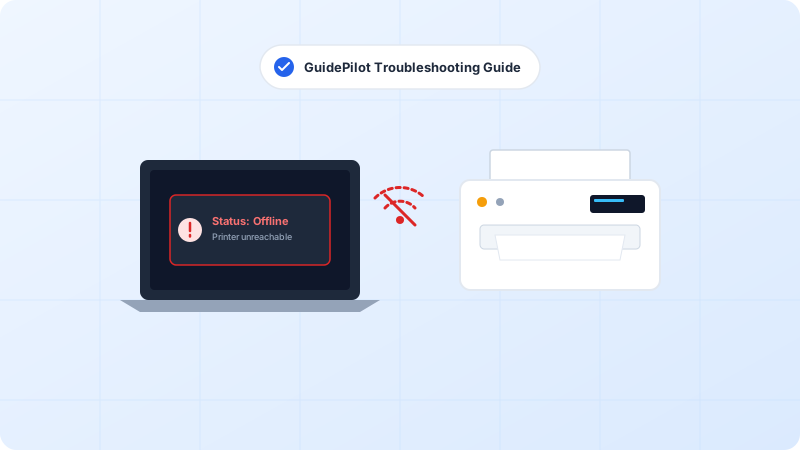
You hit Print, the job appears in the queue with status “Printing…” or “Deleting…”, but nothing ever comes out of the paper tray. Even worse, clicking Cancel does nothing. When a print queue is jammed, all subsequent documents are blocked. Here is how to force-unstick it.
Why This Problem Happens
- A corrupted PDF or high-resolution graphic exceeded the printer internal buffer memory.
- Windows locked the spool temporary files (.SPL and .SHD) while another program was reading them.
Step-by-Step Troubleshooting Procedure
Step 1: Cancel the Stuck Document from the Windows Print Queue
Objective: The standard graceful way to cancel pending print jobs.
- Press Windows Key + R, type control printers, and press Enter.
- Double-click your active printer to open the print queue dialog.
- Right-click the top document in the list and select “Cancel”.
- If it changes to “Deleting…” and stays stuck for more than 30 seconds, proceed to Step 2.
Step 2: Force-Kill the Print Spooler Service via Command Prompt
Objective: Instantly releases Windows file locks on jammed printer files.
- Click Start, type “cmd”, right-click Command Prompt and pick “Run as administrator”.
- Type net stop spooler and hit Enter. You should see “The Print Spooler service was stopped successfully.”
- Leave the Command Prompt open.
You must select “Run as administrator” or Windows will deny permission to stop the spooler service.
Step 3: Delete the Spooler Files from the System32 Folder
Objective: Permanently removes the corrupted temporary files blocking the queue.
- Press Windows Key + R to open the Run box.
- Paste this exact path: C:WindowsSystem32spoolPRINTERS and press Enter.
- Select every file inside this folder (Ctrl + A) and press Delete.
- Close the File Explorer window.
Step 4: Restart the Spooler and Test Printing
Objective: Restarts the clean printing service without restarting your computer.
- Return to your Command Prompt window.
- Type net start spooler and hit Enter. You should see “The Print Spooler service was started successfully.”
- Open a simple text file in Notepad, type a few words, and print it to verify normal operation.
Verified Troubleshooting Tips
- If PDFs frequently jam your printer, open the PDF in Adobe Acrobat, click Advanced in the Print dialog, and check “Print as Image”.
- Ensure your computer has at least 5 GB of free hard drive space on drive C: for spool cache operations.
Frequently Asked Questions
Will deleting files in C:WindowsSystem32spoolPRINTERS harm my computer?
No. That folder is purely a temporary staging area for active print jobs. Windows automatically re-creates any necessary files the next time you print.