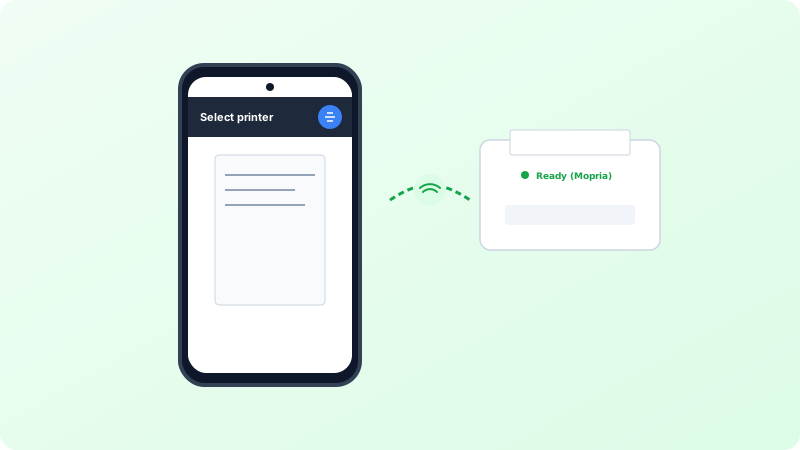
Modern Android smartphones running Android 10 through 15 come with built-in Mopria print services. You do not need to email documents to yourself or transfer them to a laptop just to print.
Why This Problem Happens
- Android print service may be toggled Off in connection preferences.
- The phone is connected to cellular 5G instead of local home Wi-Fi.
Step-by-Step Troubleshooting Procedure
Step 1: Enable the Android Default Print Service
Objective: Turn on the native background discovery service.
- Open Settings on your Android phone.
- Go to “Connected devices” (or “Connections” on Samsung) > “Connection preferences” > “Printing”.
- Tap “Default Print Service” and ensure the toggle switch is ON.
Step 2: Print from Any App (Chrome, Gallery, or Files)
Objective: Execute the print workflow from the Android share sheet.
- Open the webpage, photo, or PDF you want to print.
- Tap the 3-dots menu or Share icon, and select “Print”.
- Tap the printer dropdown at the top and select your printer.
- Adjust paper size, color mode, and copies, then tap the round yellow/blue Printer icon.
Verified Troubleshooting Tips
- If your printer does not appear, install the “Mopria Print Service” app from Google Play Store for universal compatibility.
Frequently Asked Questions
Can I print from Android without a Wi-Fi router?
Yes! Turn on “Wi-Fi Direct” on your printer, then connect your phone directly to the printer’s Wi-Fi network name using the Wi-Fi Direct password.