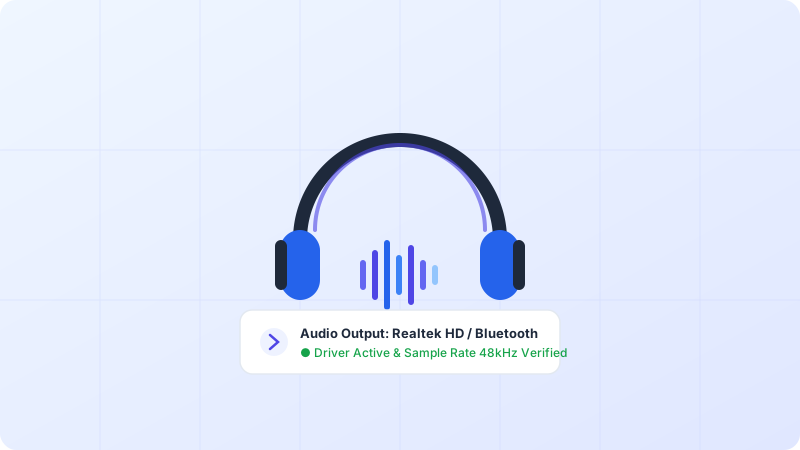
Spatial sound creates virtualized 360-degree positional audio through any standard pair of stereo headphones for realistic spatial awareness.
Why This Problem Happens
- Spatial Sound option greyed out because audio sample rate is set above 24-bit 48kHz.
- Dolby Access app license de-registered.
Step-by-Step Troubleshooting Procedure
Step 1: Enable Windows Sonic for Headphones
Objective: Activate free built-in 3D audio.
- Right-click the speaker icon in your taskbar > Sound settings.
- Select your headphones, locate “Spatial sound”, and select “Windows Sonic for Headphones”.
Step 2: Fix “Spatial Sound Option Greyed Out”
Objective: Adjust sample rate to supported frequency.
- Open classic Sound control panel (mmsys.cpl) > Headphones Properties > Advanced tab.
- Change sample rate from 96000Hz or 192000Hz down to “24 bit, 48000 Hz” (Spatial sound requires 48kHz).
Step 3: Configure Dolby Atmos for Headphones
Objective: Calibrate EQ profiles.
- Launch the Dolby Access app, go to Settings > Select “Game” or “Movie” profile with Performance Mode enabled.
Verified Troubleshooting Tips
- In gaming audio options, set speaker configuration to “Surround” or “7.1” so the game outputs multi-channel spatial data for Windows Sonic to binauralize.
Frequently Asked Questions
Do I need special expensive headphones for Dolby Atmos?
No! Dolby Atmos for Headphones works with any standard pair of stereo headphones or earbuds.