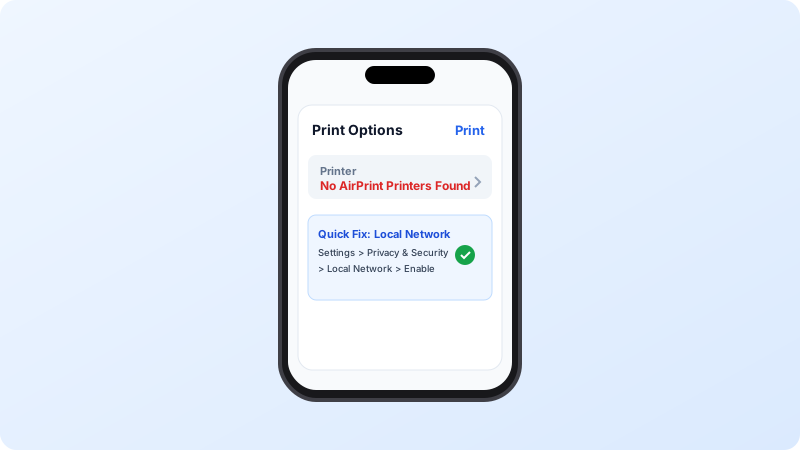
Tapping Print on an iPhone only to receive “No AirPrint Printers Found” is usually due to missing Local Network permissions or dual-band Wi-Fi separation.
Why This Problem Happens
- iOS 18 Local Network privacy permission was declined for the printing application.
- iPhone is on 5GHz Wi-Fi while printer is connected to 2.4GHz with router AP client isolation enabled.
Step-by-Step Troubleshooting Procedure
Step 1: Enable “Local Network” Access in iOS Settings
Objective: Allow app to scan local subnet.
- Open Settings on your iPhone and scroll down to your printing app (or Safari/Files).
- Ensure the toggle for “Local Network” is switched ON.
Step 2: Verify Same Wi-Fi Network (Disable Cellular & VPN)
Objective: Ensure direct LAN reachability.
- Temporarily turn off Cellular Data and any active VPN apps (e.g. NordVPN, Cloudflare 1.1.1.1).
- Confirm your iPhone and printer share the exact same Wi-Fi SSID name.
Step 3: Power Cycle Router, Printer, and iPhone
Objective: Clear mDNS Bonjour routing tables.
- Restart your router first, wait 2 minutes, then restart your printer, and finally restart your iPhone.
Verified Troubleshooting Tips
- In router admin settings, ensure Multicast (mDNS) and IGMP Snooping are enabled.
Frequently Asked Questions
Does AirPrint require printer drivers on iPhone?
No! AirPrint is zero-configuration technology built directly into iOS; no drivers are required.