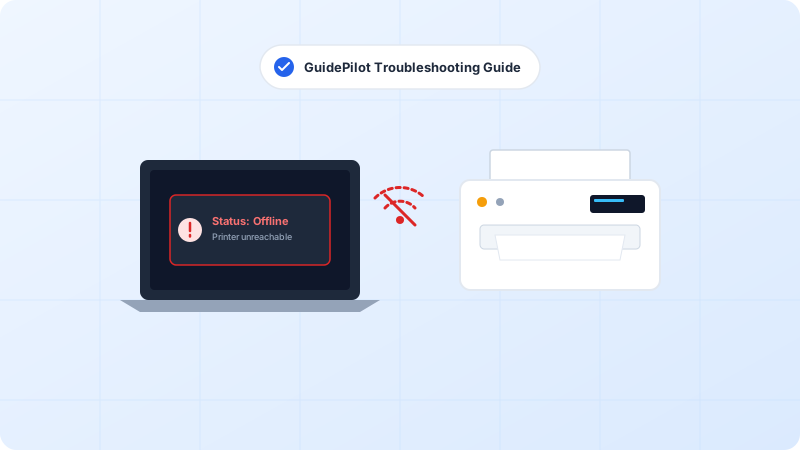
A printer showing “Offline” is one of the most common and frustrating technical headaches. In most cases, the printer hardware itself is working perfectly, but a dropped network handshake, a paused print queue, or a stale driver prevents your computer from communicating with it. Follow these verified steps to get your printer back online in minutes.
Why This Problem Happens
- The printer entered a sleep or power-saving mode and lost its IP address lease on the local router.
- Windows or macOS automatically toggled the printer status to “Use Printer Offline” following a momentary signal drop.
- The Windows Print Spooler service froze while processing an oversized or corrupted document in the queue.
- Your Wi-Fi router assigned a new dynamic IP address to the printer that does not match your computer port settings.
Step-by-Step Troubleshooting Procedure
Step 1: Perform a Complete Power Cycle (Printer & Router)
Objective: Clears volatile memory and re-registers the printer with your local Wi-Fi router.
- Press the Power button on the printer to turn it off completely.
- Unplug the power cord from both the back of the printer and the wall outlet.
- Wait a full 60 seconds to allow all electrical capacitors to discharge.
- Plug the power cable directly into the wall outlet (avoid unpowered surge strips during troubleshooting).
- Turn the printer back on and wait until it finishes its boot cycle and the Wi-Fi indicator light turns solid blue or green.
If your printer Wi-Fi icon is blinking, restart your Wi-Fi router as well. Wait 2 minutes for the router to fully reboot before turning the printer back on.
Step 2: Check the Physical and Wireless Connection
Objective: Ensure both computer and printer are communicating on the exact same frequency band.
- If using a USB cable: Unplug the cable, check both ends for bent pins or debris, and plug it into a different USB port directly on your computer (not a USB hub).
- If using Wi-Fi: Confirm your computer and printer are connected to the exact same Wi-Fi SSID. Many modern mesh routers split 2.4 GHz and 5 GHz bands; older printers only connect to 2.4 GHz.
- Print a Network Configuration Page from the printer control panel to verify it has a valid IP address (e.g., 192.168.1.xxx) and not a fallback self-assigned IP (169.254.xxx.xxx).
Never connect your printer to a “Guest Wi-Fi” network. Guest networks enforce client isolation, which intentionally blocks devices from talking to each other.
Step 3: Disable “Use Printer Offline” in Windows Settings
Objective: Windows frequently gets stuck in offline mode even after network connectivity is restored.
- Press Windows Key + R, type control printers, and press Enter to open Devices and Printers.
- Right-click your active printer and select “See what’s printing”.
- In the top menu bar of the print queue window, click “Printer”.
- Look for “Use Printer Offline”. If it has a checkmark next to it, click it once to uncheck it.
- Also ensure “Pause Printing” is unchecked.
If “Use Printer Offline” is grayed out, you must log in as a Windows Administrator or restart the Print Spooler service.
Step 4: Clear the Print Queue and Restart Windows Print Spooler
Objective: A corrupted pending document can lock up the entire spooler pipeline.
- Press Windows Key + S, type “cmd”, right-click Command Prompt and select “Run as administrator”.
- Type net stop spooler and press Enter. This temporarily halts the printing engine.
- Press Windows Key + R, type C:WindowsSystem32spoolPRINTERS, and hit Enter. Delete all files inside this folder.
- Return to your Command Prompt window, type net start spooler, and press Enter.
- Close the command prompt and check if your printer status changes to Ready.
Step 5: Reset the Mac Printing System (macOS Users)
Objective: macOS users can quickly flush all stale printer daemons without losing documents.
- Click the Apple Menu in the top left and open System Settings (or System Preferences).
- Scroll down and click “Printers & Scanners”.
- Hold the Control key and right-click (or two-finger tap) anywhere in the Printers list on the left.
- Click “Reset Printing System…” and confirm with your Mac administrator password.
- Click the “Add Printer, Scanner, or Fax…” button (+) to re-add your printer using Bonjour / AirPrint.
Step 6: Remove and Re-add the Printer Device
Objective: Creates a fresh, clean connection entry in the operating system.
- In Windows: Go to Settings > Bluetooth & devices > Printers & scanners.
- Select your printer name and click “Remove”. Restart your PC.
- Return to Printers & scanners and click “Add device”. Let Windows search your network and select your printer.
- Print a test page to verify that the printer reports Ready.
Verified Troubleshooting Tips
- Set a static IP address or DHCP reservation for your printer in your home router settings to prevent IP drift.
- Temporarily disable third-party antivirus firewalls (like Norton or McAfee) to test if they are blocking printer discovery packets.
- Check ink cartridges and paper trays. Some printers report “Offline” to the OS when they are simply out of paper or in a cover-open state.
Frequently Asked Questions
Why does my printer show offline even though it is turned on?
This usually occurs because the printer has lost its local Wi-Fi connection, entered deep sleep mode, or Windows has toggled the “Use Printer Offline” flag in the print queue after a momentary packet drop.
Will restarting the Print Spooler delete my documents?
Yes, clearing the spooler folder will remove any documents currently stuck in the queue. You will need to press Print again from your application once the printer is back online.
How do I prevent my printer from going offline repeatedly?
Log into your Wi-Fi router admin panel and assign a Static DHCP Reservation to the printer MAC address. Also disable “Auto-Off / Deep Sleep” in your printer web configuration page.