You open the Quick Settings flyout in Windows 11 and find that the Wi-Fi icon has completely vanished, or your specific home network does not appear in the available list even though your smartphone is connected to it. Let’s fix it step-by-step.
Why This Problem Happens
- The WLAN AutoConfig Windows service failed to start automatically.
- Fast Startup caused Windows to restore a corrupted hibernation state of the network adapter.
- The Wi-Fi adapter driver crashed following a background Windows Update.
Step-by-Step Troubleshooting Procedure
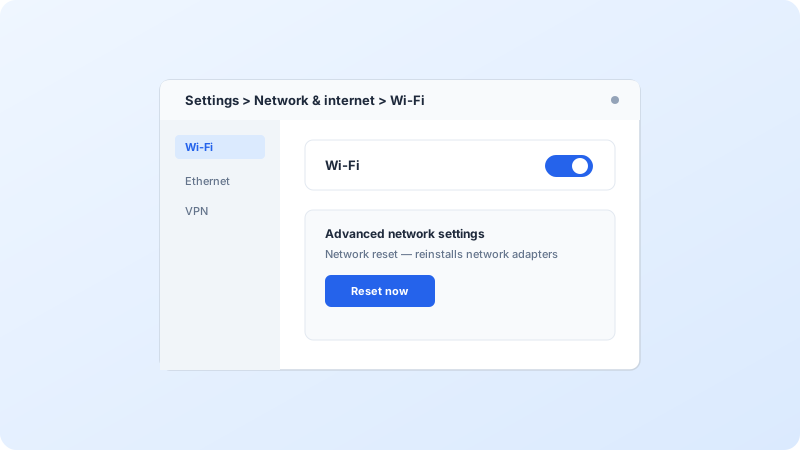
Step 1: Run Network Reset in Windows 11 Settings
Objective: Reinstalls all network adapters and restores factory IP/DNS defaults.
- Press Windows Key + I to open Settings.
- Click “Network & internet” on the left menu, then scroll to “Advanced network settings”.
- Click “Network reset”, then click the “Reset now” button.
- Confirm with Yes. Your computer will automatically reboot in 5 minutes (or reboot manually now).
Step 2: Verify WLAN AutoConfig Service is Running
Objective: This service manages all wireless connections in Windows.
- Press Windows Key + R, type services.msc, and press Enter.
- Scroll to the bottom of the list and locate “WLAN AutoConfig”.
- Right-click it and choose Properties.
- Set Startup type to “Automatic” and verify Service status says “Running”. If stopped, click Start.
Step 3: Reinstall the Wi-Fi Adapter in Device Manager
Objective: Forces Windows to re-detect the physical wireless card.
- Press Windows Key + X and select “Device Manager”.
- Expand the “Network adapters” section.
- Right-click your Intel, Realtek, or MediaTek Wi-Fi adapter and click “Uninstall device”.
- Click Action in the top menu and select “Scan for hardware changes”. Windows will instantly reload the clean driver.
Verified Troubleshooting Tips
- Turn off Windows Fast Startup: Control Panel > Power Options > Choose what the power buttons do > uncheck “Turn on fast startup”.
Frequently Asked Questions
Why does my laptop see my neighbor’s Wi-Fi but not my own?
Your router is likely broadcasting on Wi-Fi Channel 12, 13, or using DFS 5GHz channels that your laptop wireless card region settings do not support. Change your router channel to 1, 6, or 11 (for 2.4GHz) or 36-48 (for 5GHz).