When your Mac shows “Filter failed”, “Rasterizer error”, or printer communication errors that survive a reboot, resetting the macOS printing system is the Apple-recommended nuclear option that clears all corrupted print preferences without touching your personal files.
Why This Problem Happens
- macOS uses CUPS (Common Unix Printing System). Post-update permission mismatches corrupt the CUPS configuration files.
Step-by-Step Troubleshooting Procedure
Step 1: Open Printers & Scanners Settings
Objective: Access the root printer list in macOS.
- Click the Apple logo in the top-left menu bar and select System Settings.
- Scroll down the sidebar and select “Printers & Scanners”.
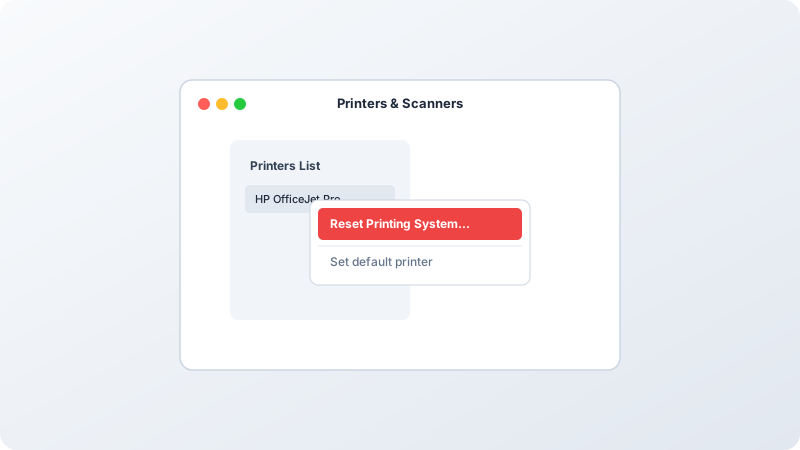
Step 2: Execute the Printing System Reset
Objective: A hidden context menu item restores factory CUPS configurations.
- Hold the Control (Ctrl) key on your keyboard.
- Click in the empty space below the list of printers (or right-click any existing printer).
- Click the red or highlighted option: “Reset Printing System…”.
- Enter your Mac administrator password when prompted and click Reset.
Step 3: Re-add Your Printer Using AirPrint
Objective: Allows macOS to auto-configure secure driverless printing.
- Click the “+ Add Printer, Scanner, or Fax…” button.
- Select your printer from the Bonjour list.
- In the “Use:” dropdown at the bottom, make sure it says “Secure AirPrint” or “AirPrint”.
- Click Add and print a test document.
Verified Troubleshooting Tips
- Always prefer AirPrint over proprietary vendor driver packages on modern Apple Silicon Macs.
Frequently Asked Questions
Will resetting the printing system delete my saved documents or photos?
No. It only clears configured printers, scanners, and pending print jobs. Your files and photos are 100% safe.