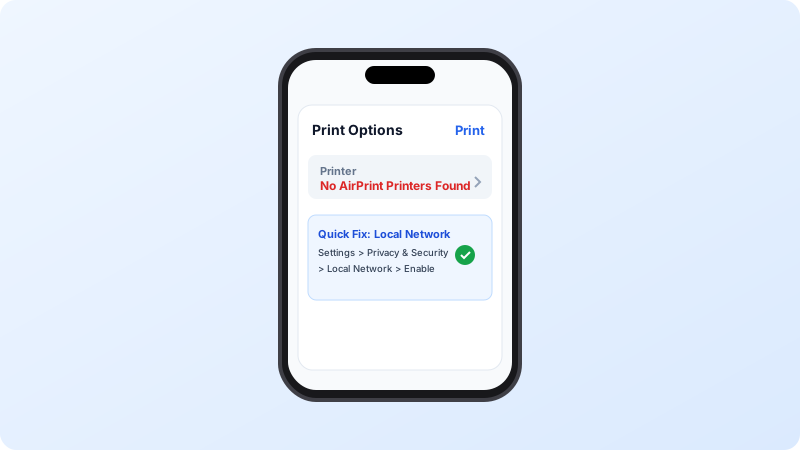
You tap Share > Print on your iPhone, but after searching for a few seconds iOS presents the dreaded message: “No AirPrint Printers Found”. In nearly all cases, this is caused by local network privacy toggles, dual-band Wi-Fi separation, or a stalled Bonjour broadcast.
Why This Problem Happens
- iOS 16, 17, and 18 require explicit permission for apps to search your “Local Network”.
- Your iPhone is connected to a 5GHz network band while the printer is asleep on the 2.4GHz band of the same router.
Step-by-Step Troubleshooting Procedure
Step 1: Check Local Network Privacy Permissions in iOS Settings
Objective: Apple blocks printer discovery if this setting was denied.
- Open Settings on your iPhone.
- Scroll down and tap Privacy & Security > Local Network.
- Ensure the switch next to Safari, Files, or your printer app is enabled (green).
Step 2: Restart Both iPhone and Wi-Fi Router
Objective: Flushes stale multicast DNS (mDNS) tables on your router.
- Power cycle your router by unplugging it for 30 seconds.
- On your iPhone: press and hold the Side button + Volume Up button, slide to power off, then turn it back on after 30 seconds.
- Reconnect to Wi-Fi and retry printing.
Verified Troubleshooting Tips
- Verify that “Private Wi-Fi Address” in Settings > Wi-Fi > your network is not rotating IP addresses constantly.
Frequently Asked Questions
Does every printer support AirPrint?
Most wireless printers built after 2013 support AirPrint. Check Apple’s official AirPrint compatibility directory or look for the “Works with Apple AirPrint” badge on your printer box.