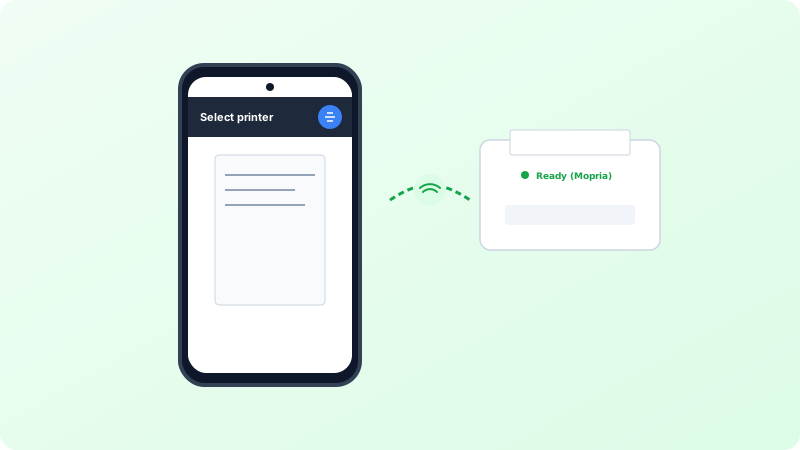
Printing documents, PDFs, and photos directly from your Android phone without transferring files to a computer is simple once mobile print services are enabled.
Why This Problem Happens
- Default Print Service turned off in Android system settings.
- Phone and printer connected to mismatched Wi-Fi frequency bands.
Step-by-Step Troubleshooting Procedure
Step 1: Enable Default Print Service
Objective: Activate local Wi-Fi printer discovery.
- Open Settings > Connected devices > Connection preferences > Printing.
- Tap “Default Print Service” and toggle it to ON.
Step 2: Install Mopria Print Service or Brand Plugin
Objective: Broaden protocol support.
- From Google Play Store, install “Mopria Print Service” or your brand plugin (e.g. HP Print Service Plugin, Canon Print Service).
- Grant local network permissions when prompted.
Step 3: Print Document from Any Android App
Objective: Select output options.
- Open your document or photo, tap the Share icon or Three Dots menu > Print.
- Select your printer from the drop-down header, adjust copies or color, and tap the yellow Print icon.
Verified Troubleshooting Tips
- If the printer is not discovered, ensure VPN apps are temporarily paused on your phone, as VPNs tunnel traffic away from local subnets.
Frequently Asked Questions
Can I print from Android with a direct USB OTG cable?
Yes! Connect an OTG adapter and standard printer USB cable; Android will detect the printer as a physical USB accessory.